

What the available PC documentation actually shows
MEmu publishes a Teen Patti Gold setup page for the Android package. That establishes an emulator vendor’s installation instructions—not a Moonfrog Windows release or a guarantee for your PC.
Compare the vendor’s current requirements with your Windows version, RAM, free disk space and graphics hardware. Ask Moonfrog about unsupported environments before signing in; do not enable macros or multiple-account automation. Keep the working phone account intact during setup.
For Moonfrog’s Teen Patti Gold, this guide has not verified a native Windows executable or a publisher-approved emulator configuration. Before installing anything, confirm the exact product and ask whether the proposed computer setup is supported and permitted. Technical ability to open an app is not the same as authorization to use that setup.
The steps below explain a conditional Windows installation workflow, account precautions, and troubleshooting checks. They are not a claim of hands-on compatibility testing or a guarantee that a particular computer will run the game.
What Does “Teen Patti Gold for PC” Mean?
| Download or platform | What it actually represents | Check before proceeding |
|---|---|---|
| Windows EXE or MSI | A Windows program or installer | Whether Moonfrog genuinely publishes that game client |
| Android APK | A package for Android | Source, identity, and a supported Android environment |
| Android emulator | Software that provides an Android environment | Computer requirements and game-publisher permission |
| Browser page | Web content, possibly an account or information page | Whether it actually provides supported gameplay |
| PC gaming platform listing | A game offered through that platform | Exact title, developer, availability, and compatibility |
A website containing login or chip-related controls is not automatically a browser game. Likewise, a Windows desktop shortcut created by an emulator does not make the Android app a native Windows release.
Be particularly cautious with a file called something like “Gold PC Setup” if the source cannot identify its publisher. The filename is a label, not proof of origin.
First Check: Is This the Moonfrog Product?
The Android product discussed here is Teen Patti Gold by Moonfrog, associated with package com.teenpatti.hd.gold. Compare the developer and product identity before following a computer tutorial.
Do not substitute Teen Patti Master, Teen Patti Star, or another Gold-themed app because it is easier to find. Similar names do not establish compatible accounts, shared balances, or identical software requirements.
Use the Teen Patti Gold identity guide as a starting point, then verify the source connected to your actual app. A package identifier is useful evidence, but it does not independently certify an arbitrary APK as genuine or safe.
Second Check: Is the Proposed Setup Allowed?
Moonfrog’s terms of service restrict unauthorized software, automation, and attempts to circumvent its rules. Those restrictions mean you should not infer permission from an emulator company’s feature list or an unrelated installation video.
Ask the publisher about the exact environment if the current support materials do not make it clear. State the Windows version, emulator name and version, and intended app. A response about one configuration should not be expanded into permission for every tool or feature.
This guide does not conclude that every emulator is banned. It also does not establish that any particular emulator is approved. If support is unclear, using the app on a supported mobile device is the more straightforward option.
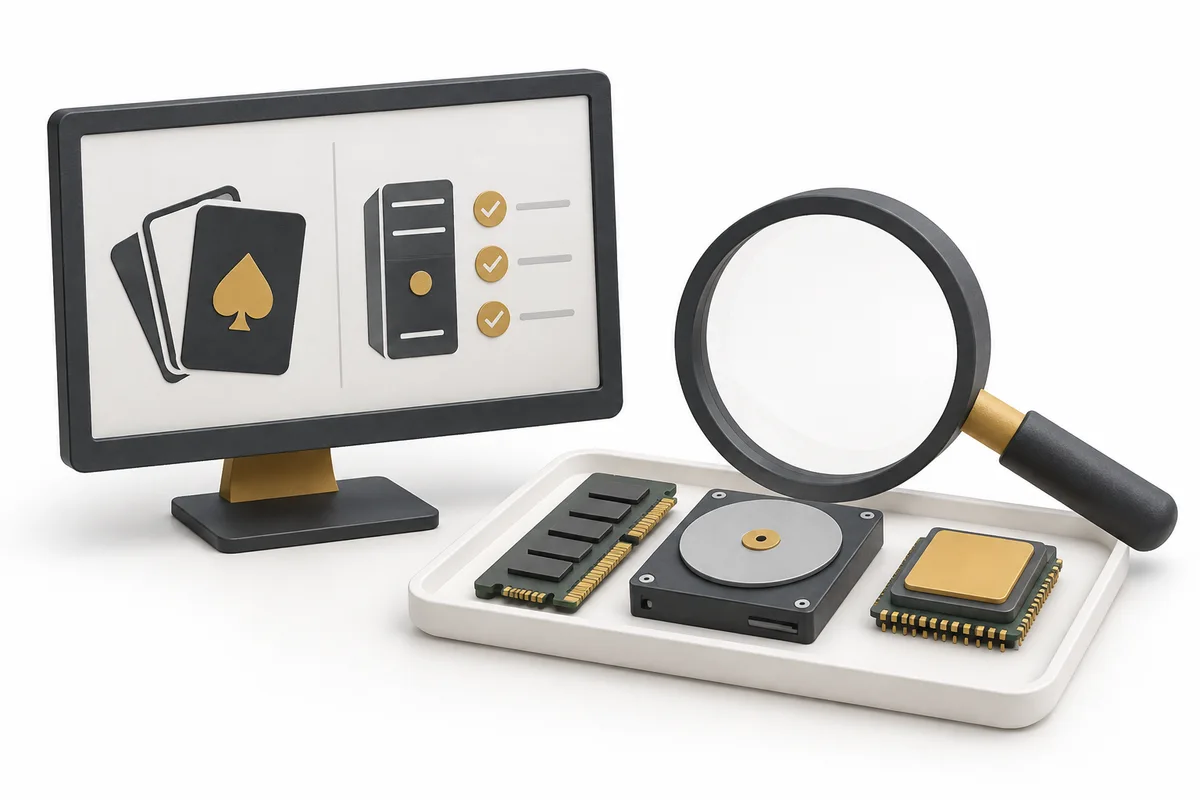
Check Your Windows Computer Before Installing a Platform
Record the Windows version, processor type, installed memory, free storage, and graphics hardware. Match those details to the current requirements of the platform you are considering.
For example, BlueStacks publishes its own Windows requirements, including memory, storage, graphics-driver, and virtualization information. Its documentation is evidence about the emulator, not a Teen Patti Gold compatibility certificate. Use the official BlueStacks requirements rather than a copied specification on a download mirror.
Do not confuse RAM with disk space. Having many gigabytes free on a drive does not supply the working memory an emulator needs. Leave capacity for Windows and other applications rather than assigning every available resource to the game environment.
If a platform requires a firmware or virtualization change, follow instructions for your computer and the current software version. Do not disable security protections based on a generic video made for different hardware.
Conditional Installation Steps for a Supported Environment
Step 1: Preserve Your Existing Account Information
On your working phone, save the player ID, login method, app version, and relevant recovery information. Keep the original installation intact while investigating computer access.
A guest profile may not transfer automatically. Even a familiar social sign-in button does not prove that every profile will synchronize in a new environment. Ask about the specific account before deleting local data or replacing a working device.
Step 2: Install the Approved Platform From Its Genuine Source
Only proceed once you have established that the intended environment is appropriate. Use the platform publisher’s own distribution route, review the installer identity, and read optional installation prompts.
Do not accept unrelated browser changes or extra utilities merely to reach the game. Stop if the process asks you to disable protection without a clear, independently verified reason. A security warning is not a routine obstacle to click through.
Step 3: Locate the Exact Game Inside That Environment
Use the supported application-discovery method and check the developer before installation. Availability can differ by region, device profile, and platform, so a tutorial showing an Install button is not a guarantee that you will see one.
If the game is unavailable or incompatible, stop and check the reason. Do not bypass the restriction by downloading random older packages, modifying the app, or pretending to use a different device. Missing availability is not an instruction to circumvent it.
Step 4: Sign In Using the Original Method
After installation, use the account method that belongs to your existing game profile. Check the player ID before assuming the familiar avatar means you reached the right account.
If a new profile appears, do not make purchases or start transferring anything. Save the mismatch and consult support. Signing in successfully to a platform account is not proof that the game has restored your original profile.
Step 5: Test Navigation Before Joining a Table
Check that text is readable, buttons respond in the correct position, and the window can display important confirmations. Test sound and ordinary mouse input without enabling automation.
If a suitable no-purchase practice option is available, use it for a limited test. Avoid spending while determining whether the setup is stable. A game that reaches the lobby can still have problems with account persistence, graphics, or connections later.
What Not to Enable
Some Android platforms include macros, synchronized inputs, multiple instances, or device-profile tools. A platform offering a feature does not mean a game permits its use.
Do not use scripts to collect rewards, coordinate several accounts, or automate table decisions. Do not alter identifiers to evade an account restriction. These are not necessary steps for reading cards on a larger display.
Keep the purpose narrow: one genuine account, ordinary input, and the supported game. If a tutorial presents automated chip collection as part of basic installation, disregard that portion and recheck the publisher’s rules.
Troubleshooting by Symptom
| Symptom | First thing to investigate | Avoid |
|---|---|---|
| Platform fails to start | Its requirements and installation error | Repeatedly replacing the game APK |
| Game is not listed | Product identity and platform availability | Region or device spoofing |
| Black or blank screen | Current compatibility guidance and graphics configuration | Random settings copied from another game |
| A new account appears | Original login method and player ID | Deleting the working phone profile |
| Buttons misalign | Window scale and supported input settings | Automated clicking workarounds |
| Restriction notice appears | Exact notice and publisher support | Attempting to hide the environment |
Make one reversible change at a time and record the result. Reinstalling both platform and game after every error can remove useful evidence while making it harder to identify the cause.
If you contact support, distinguish a platform launch failure from a game account issue. Include the relevant versions, device information, and a cropped error screenshot, but no passwords or authentication codes.
Sources
- MEmu: app-specific PC instructions
- BlueStacks: platform requirements
- Moonfrog terms
References above checked on 21 September 2026.