

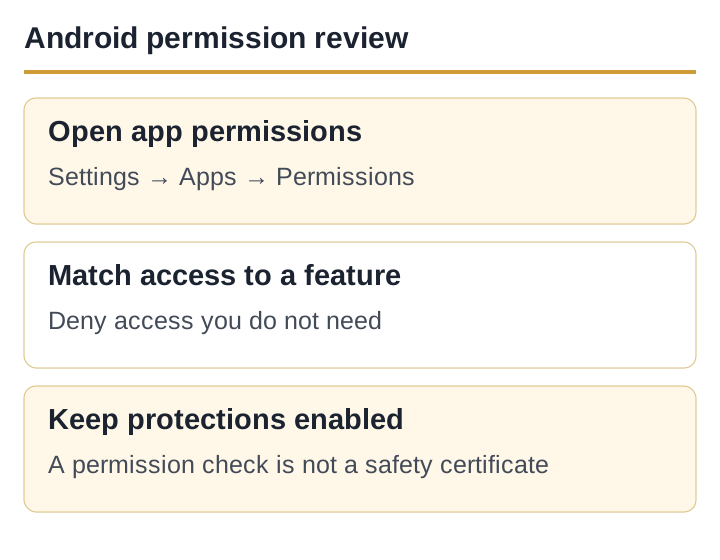
Permissions are one layer, not the identity check
Start before installation. The attributable Google Play record for Teen Patti Gold:3 Patti Rummy identifies developer Moonfrog and Android package com.teenpatti.hd.gold. A matching icon or filename does not establish either field.
Android also requires an update to keep the same application ID and a compatible signing certificate. That helps explain why package identity and signing history matter more than the words “new version APK.” It does not let this site confirm the signer of a file it has not independently inspected.
Use the full Teen Patti Gold download and identity checklist before opening any package.
Review the installed app in Android Settings
Menu names vary by Android version and manufacturer, but the normal route is Settings → Apps → See all apps → [app name] → Permissions. Android lets you allow or deny individual permission groups. On supported Android versions, the Privacy Dashboard can also show which apps accessed a permission recently.
| Permission or capability | Question to ask | Conservative default |
|---|---|---|
| Notifications | Do you want game alerts on this device? | Deny if unnecessary; can be changed later |
| Microphone | Are you deliberately using voice chat? | Deny unless that feature is in use |
| Camera / photos | Are you choosing a profile image or scanning something? | Prefer one-time or selected-photo access where available |
| Contacts | Does the feature work without uploading the address book? | Pause and avoid broad access unless clearly needed |
| SMS / phone | Why would a social card game need message or call access? | Pause; never share an OTP because an app or caller asks |
| Location | Is a location-specific feature active? | Deny or use approximate access unless justified |
If a feature genuinely needs access, Android can ask at the moment of use. Granting broad access “just in case” gives you less context for judging the request.
Requests that deserve a hard pause
A permission is not automatically malicious. The useful test is whether the requested capability is proportionate to the feature you initiated and whether the explanation is clear.
- Accessibility control: this can let an app read screen content and interact with other apps. A card game should give an unusually clear reason before you even consider it.
- SMS, notification reading or call logs: do not approve these to “verify” a bonus, withdrawal or account. Never disclose an OTP or UPI PIN.
- Device administrator or install-other-apps access: stop if the app asks for control unrelated to gameplay or a normal update route.
- Disable Play Protect: treat instructions to turn off a protection in order to proceed as a warning, not a routine install step.
- Remote-access tools: do not install screen-control software because a supposed support contact asks you to.
Unexplained urgency is part of the risk. You can close the app, review the developer and support route, and decide later.
Restricted settings are restricted for a reason
Android 13 and later can restrict sensitive settings for sideloaded apps. Google’s Android Help warns that allowing restricted settings can expose sensitive information and recommends doing so only when you trust the developer.
Accessibility is the clearest example: it can be legitimate for an accessibility service, but it can also read content on screen and interact with apps on your behalf. Do not interpret the existence of an “Allow restricted settings” menu as Android recommending that you use it.
If a message, caller or in-app contact tells you to enable restricted settings, share your screen or enter a financial credential, stop. Use only the official in-app or publisher support route you independently verified.
Keep Play Protect on—but understand the limit
Google says Play Protect checks apps during installation and periodically scans installed apps, including apps obtained outside Google Play. You can open the Play Store, tap the profile icon and choose Play Protect to review status or start a scan; exact labels can vary.
A scan result is useful evidence, not a certificate that an app is risk-free. It cannot tell you whether a promotion is fair, whether support is genuine or whether you are comfortable with the privacy trade-off. Combine the scan with package identity, signer continuity, permissions and a source you chose deliberately.
If a request does not make sense
- Deny the permission or close the restricted-settings prompt.
- Capture the exact app name, package ID and request—without exposing account or payment data.
- Check Android’s app information page and uninstall the app if you do not trust it.
- Run Play Protect and install current Android security updates.
- If an account may be affected, use the independently verified publisher support route; do not call a number copied from comments, Telegram or an ad.
This site cannot inspect a private device or recover an account. For factual updates to this guide, use the editorial contact route.
Official sources used
- Android Help: Manage permissions from the Privacy Dashboard — recent-access review and version limitations.
- Android Help: Learn about restricted settings — sensitive-setting warning and accessibility scope.
- Google Account Help: Remove malware or unsafe software on Android — Play Protect and security-update steps.
- Android Developers: How app updates work — application ID, signing certificate and version-code requirements.
- Google Play India listing — attributable Moonfrog app identity.
Published and last reviewed: 30 August 2026. Android labels vary by version and manufacturer; no checklist certifies an APK as risk-free.