

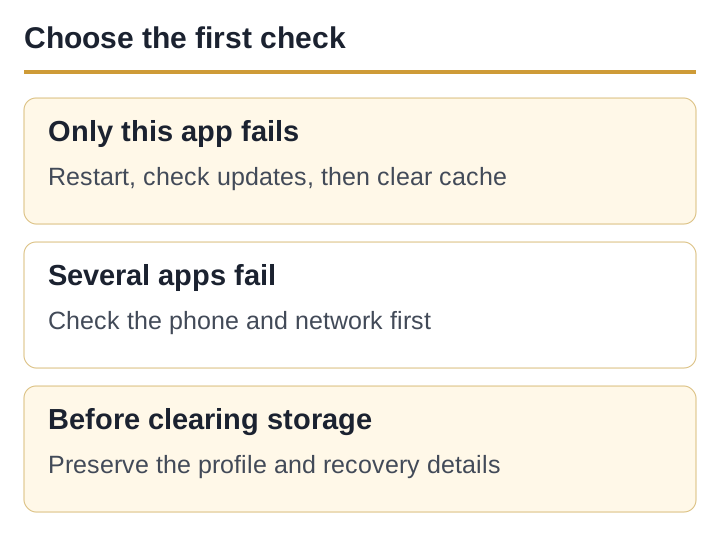
Match the symptom before changing anything
“Not working” can describe several different failures. Use the screen in front of you to choose the first check; changing account or storage settings before that can remove useful evidence.
| What you see | First useful check | Do not do yet |
|---|---|---|
| App closes immediately | Restart the phone, then check for an app and Android update. | Do not clear storage. |
| Logo or loading screen does not move | Switch once between Wi-Fi and mobile data; note any error text. | Do not assume the service is down. |
| “No internet” or retry message | Open two unrelated websites and check automatic date and time. | Do not repeatedly sign in. |
| Only one table or feature fails | Return to the lobby and check whether another screen opens without making a purchase. | Do not reinstall the whole app. |
| Several apps crash or will not connect | Free storage, restart Android and fix the network first. | Do not treat this as a Teen Patti Gold-only fault. |
A loading error can come from the phone, network or service. Without a publisher status notice or repeat tests on another working device and network, “server down” is only a possibility.
Four checks that do not remove app data
- Force close and reopenOpen Android’s app information for Teen Patti Gold, tap Force stop, then open it once. A force stop ends the current process; it does not normally erase app storage.
- Restart the phoneThis clears a stuck process and network session. Test the same screen before making another change.
- Check the store stateOpen Moonfrog’s Google Play listing for package
com.teenpatti.hd.gold. If an Update button is present, update from that listing. - Check free spaceAndroid needs working room beyond the download size. Remove an expendable file or unused app if storage is nearly full; do not delete account evidence.
Change one variable at a time. If the app works after a step, stop. Running every “fix” together makes the cause impossible to identify.
Use the path that matches the failure
If the app keeps stopping
Note whether the crash happens before the lobby, after sign-in or only when one feature opens. Tell the developer the action that reliably triggers the crash. After the four checks above, clear cache only and test again.
If the loading screen never finishes
Test once on Wi-Fi and once on mobile data where permitted by your plan. Turn off a newly added VPN or private DNS only if you are comfortable doing so, then retest. If the same account fails on two networks, record the time, screen and error rather than guessing at the cause.
If the app says there is no connection
Confirm that unrelated sites load, automatic date and time are enabled, and Android is not restricting background or mobile data for this app. A working browser does not prove every app endpoint is reachable, but a broken browser shows the problem is wider than Teen Patti Gold.
Clear cache and clear storage are not the same
| Android action | What it changes | Risk level |
|---|---|---|
| Clear cache | Removes temporary files that the app can recreate. | Lower risk; still close the app first. |
| Clear storage / Clear data | Resets the app’s local data as if newly installed. | High for an unlinked or guest profile. |
| Uninstall | Removes the app and its local data from the device. | High until recovery details are known. |
Before any destructive step, save the Player ID if visible, profile name, approximate chip balance, linked sign-in method and a screenshot of the error. Do not publish those details in a public comment.
Reinstall only after the recovery path is clear
Reinstallation is a late step for one app that still fails after restart, update and cache clearing. It is not a useful first move for a wider network failure. If the profile is local or its recovery route is uncertain, pause and contact the developer before uninstalling.
Install from the current Google Play record where available. If Android reports an installer or signature error, use the separate APK installation error guide; do not solve it by turning off Play Protect.
Send a reproducible report, not just “please fix”
Include the exact screen, error wording, the action immediately before it, phone model, Android version, app version shown in app information, network tested and local time of the last failure. Add Player ID only through the developer’s published support route.
“On [phone + Android], Teen Patti Gold [version] closes after [exact action]. It happened at [time] on both [networks tested]. Restart, update check and cache clearing did not change it. Player ID: [send privately].”
Never send a password, OTP, UPI PIN, card number or remote-control access. Google Play’s listing provides the current developer contact route for app-specific faults.
Keep a record of what changed
Record one change and its result at a time: does the app open, does the lobby load, and does another mode work? This keeps a connection issue separate from an account issue.
Sources and scope
- Google Play Help: Fix an installed Android app that isn’t working — the restart, update, force-stop, cache and developer-contact sequence; accessed 5 September 2026.
- Teen Patti GOLD, Rummy & Poker on Google Play — product name, package ID and developer contact; accessed 5 September 2026.
- Teen Patti Gold update diagnosis — use when the listing does not show the expected button.
These are Android troubleshooting steps, not results of a test on a specific phone. Live game-server status has not been checked.
Published and source-checked: 5 September 2026. Recheck time-sensitive app and policy details before treating them as current.